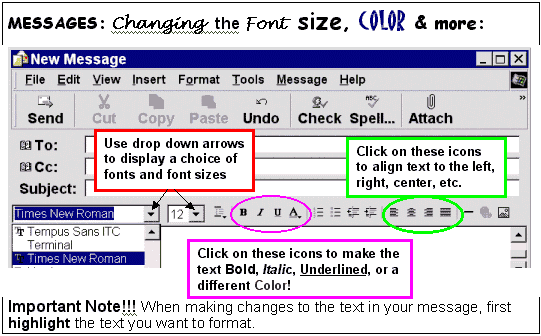
"The word, font, refers to the particular way that text can be displayed! Changing the look of text is one way of making your message more exciting."

| Home | | Services | | Gallery | | Tutorials | | Games | | Huggy Zone | | Comments | |
|
Flashcard #21: E-mail Messages: Changing the Font Size, Color, and More |
|
Susie Tutor says:
"The word, font, refers to the particular way that text can be displayed! Changing the look of text is one way of making your message more exciting." |
|
|
|
ANOTHER CONSIDERATION! The person you're sending e-mail to may not have the same fonts as you have. Some common fonts that you can use are Times New Roman, arial, and comic sans ms. |
TO CHANGE THE TEXT STYLE FOR ALL MESSAGES THAT YOU SEND: Click on the Tools menu on the Outlook Express menu bar. Next, click on Options. When the Options window appears, click the Compose tab, and then click the Font Settings button. Click here to see a picture of how to get to the Option window! Note: If you have trouble formatting, make sure HTML formatting is turned on by clicking Tools then click on Options on the Outlook Express menu bar. In the window that appears, click on the Send tab. Make sure Rich Text is selected under the Mail Format. Click here to see a picture of how to get to the Option window! |
| Back to Flashcard Set #2 Contents | Forward to Card 22 |